OneCloud
Docker and DEB package deployments are available and relatively easy to set up. To use the integrated image, sponsor the author and contact them to obtain it.
Integrated Image Overview
The latest integrated image is:
One-KVM-RUST_by-SilentWind_Onecloud_v0.2.6_260803-da20d8b.burn.img.xz
Advantages:
- Includes the PiKVM MSD kernel patch, supporting ISO images larger than 2.2 GB and custom virtual media device names.
- Uses a Linux 6.12.x kernel with specially tuned boot parameters for improved stability.
Compared with the older 5.9 kernel, the latest 6.12.x kernel image provides more complete OTG function modules and avoids kernel module crashes when switching OTG functions.
Integrated Image Deployment
Flashing Notes
The USB flashing image with the burn suffix is used with Amlogic USB Burning Tool. Version v2.1.3 or lower is recommended.
You only need to short the pads until the flashing tool recognizes the device and reaches 1%; then you can release and wait for completion. The short-pad image is from the OneCloud technical group, contributed by Lanlan.

After flashing the direct image, networking defaults to DHCP and the hostname is onecloud. During boot, the front panel LED changes from red to green. After booting, access the OneCloud IP address in your browser.
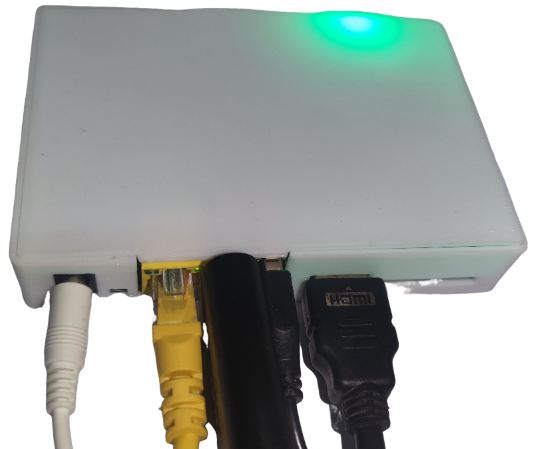
If you need to flash again, you do not need to short the pads again. Hold the reset button while powering on to enter flashing mode.
Usage Notes
After the first boot, the system has approximately 5.9 GB of available storage.
Hardware connections
- Plug the USB HDMI capture card into the USB port near the Ethernet jack on the OneCloud host, and connect the capture card to the target machine's HDMI output with an HDMI cable.
- Plug one end of the USB male-to-male cable into the USB port next to the HDMI port on the OneCloud host, and plug the other end into the target machine's USB port.
- Make sure all connections are secure, then connect power and Ethernet.
Hardware safety warning
To avoid potential risks, such as the target device failing to boot or recognize devices, and in very rare cases hardware damage, we strongly recommend taking one of the following safety measures before using a USB male-to-male cable:
Option 1: Cut or remove the red 5V power wire (VCC) in the USB cable, leaving only data wires (D+/D-) and ground (GND), to prevent back-powering.
Option 2: Insert a USB hub with an independent power switch in the USB link, and make sure its power switch is off when connecting.
Some low-power devices may be back-powered through the USB OTG port from the KVM device when main power is not connected. This can put the device into an abnormal state, and it may still fail to boot normally even after main power is connected later.
Unless you clearly understand the consequences, use the protections above to keep devices safe.
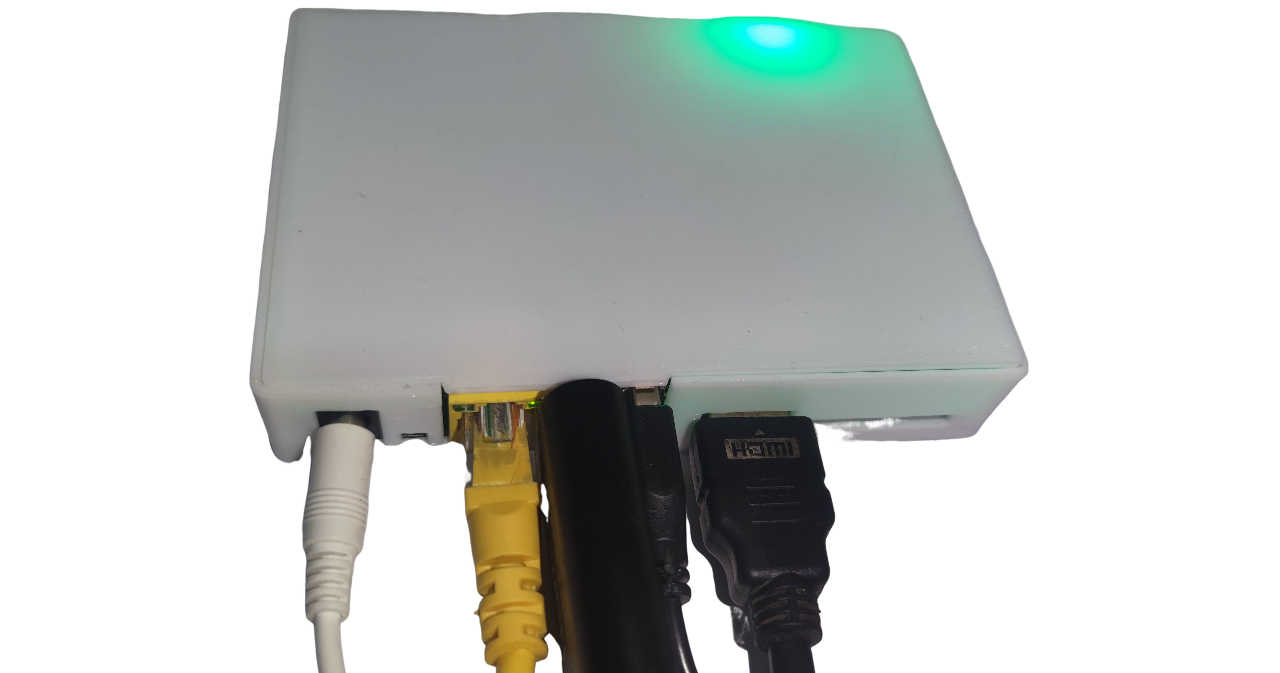
HDMI terminal
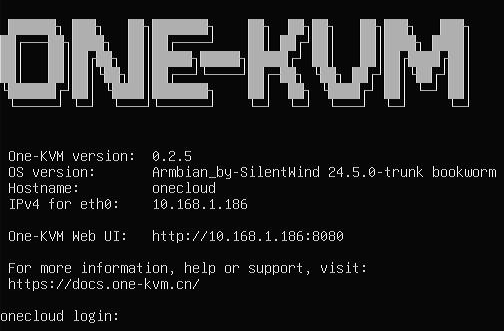
The HDMI terminal displays the device IP address and software version.
SSH remote login
SSH is enabled by default on Armbian. The initial username and password are root / 1234. Change the default password as soon as possible.
System upgrade warning
Do not use apt upgrade to upgrade the kernel and device tree. This may cause system problems and make OTG unavailable.
Changing the MAC address
The current image persists the network interface MAC address in /etc/one-kvm-image/eth0.mac. Sign in over SSH and run:
To use a different MAC address, replace 02:11:22:33:44:55 in the example.
USB function combinations
| Combination | Result |
|---|---|
| Keyboard (including status LEDs) + relative mouse + absolute mouse + multimedia keys | Passed |
| Keyboard (including status LEDs) + relative mouse + absolute mouse + multimedia keys + MSD | Passed |
| Keyboard (including status LEDs) + relative mouse + absolute mouse + multimedia keys + MSD + NCM/ECM | Unsupported |
| Keyboard (including status LEDs) + relative mouse + absolute mouse + multimedia keys + RNDIS | Unsupported |
| Keyboard (including status LEDs) + relative mouse + absolute mouse + multimedia keys + MSD + RNDIS | Unsupported |
| Keyboard (including status LEDs) + relative mouse + absolute mouse + RNDIS | Passed |
| Keyboard (including status LEDs) + relative mouse + absolute mouse + MSD + RNDIS | Unsupported |
| Keyboard (including status LEDs) + relative mouse + absolute mouse + MSD + NCM/ECM | Passed |
ATX Power Management Configuration
This section provides an ATX configuration for OneCloud. Both software settings and hardware wiring must be completed before use.
Software
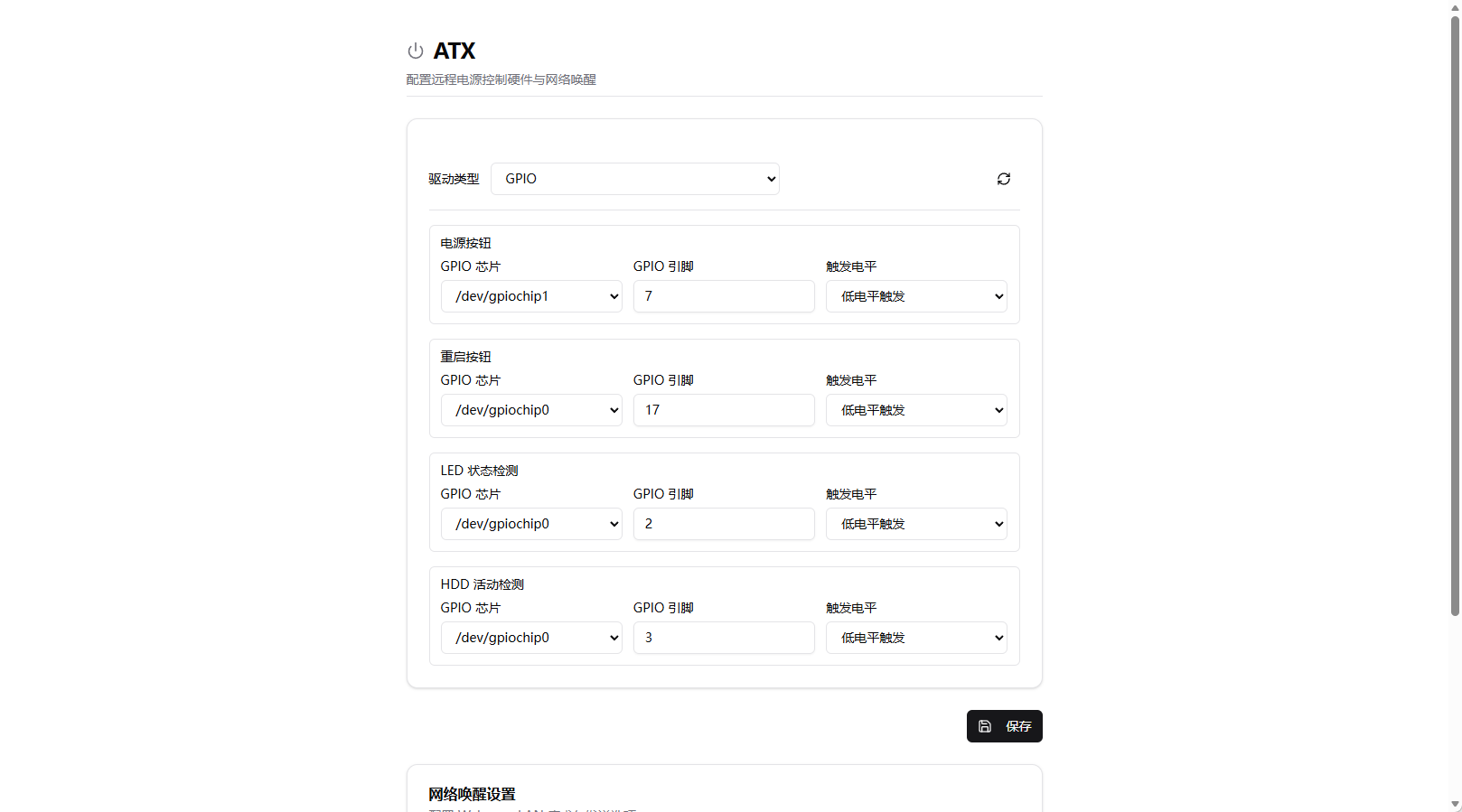
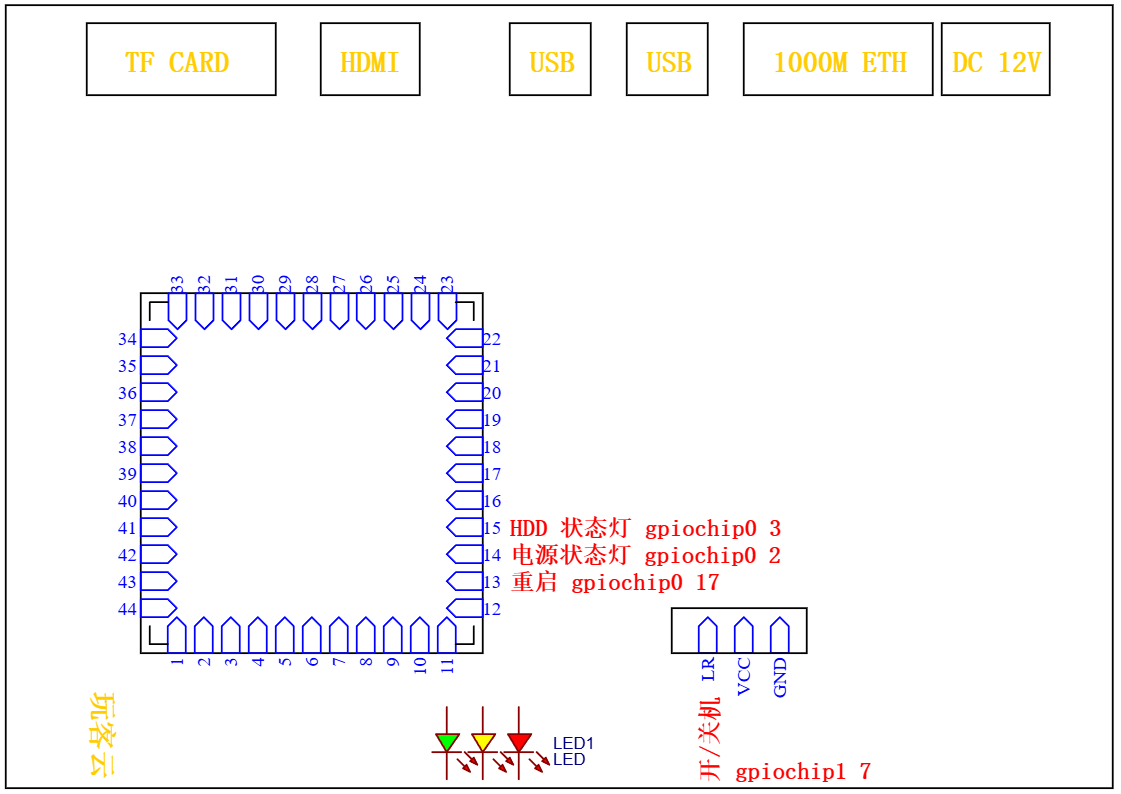
Enter the following GPIO pin data on the settings page and save.
Hardware
Power actions:
Connect the OneCloud power-on pin to PWR SW+ on the motherboard 9-pin header, and connect the GND pin to PWR SW-.
Connect the OneCloud reset pin to RESET+ on the motherboard 9-pin header, and connect the GND pin to RESET-.
Power status:
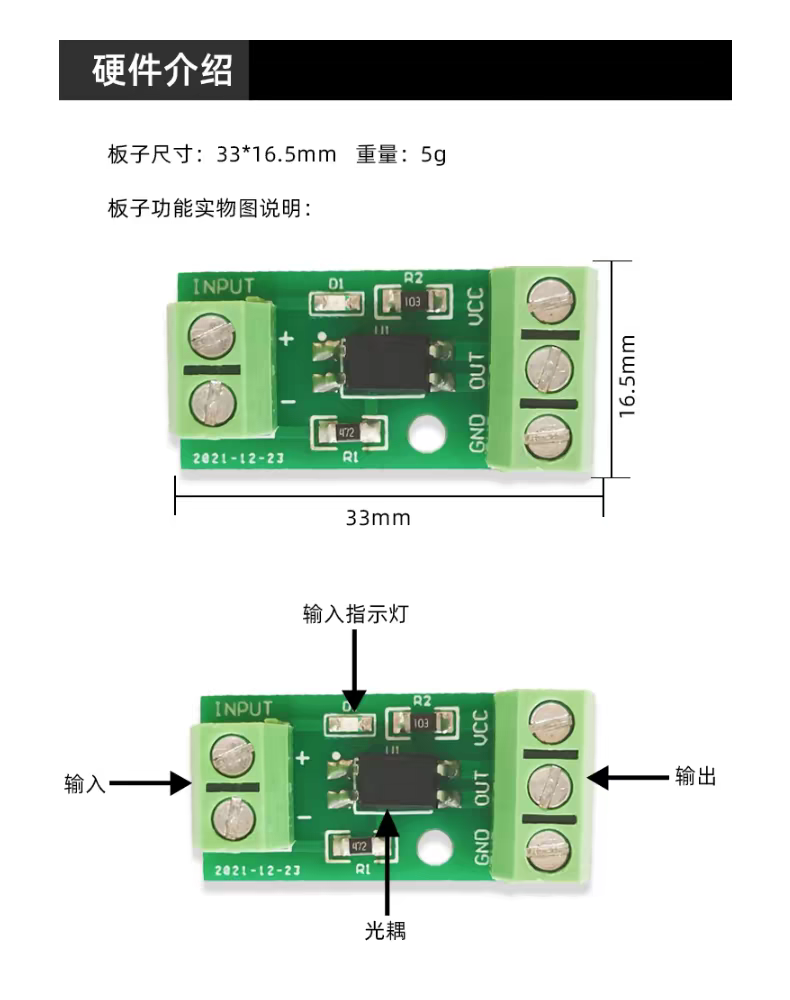
An optocoupler isolation module is required. An optocoupler module is preferred over a relay module.
Connect POWER LED+ and POWER LED- from the motherboard 9-pin header to the positive and negative input terminals of the optocoupler module respectively (polarity matters). Connect the GND and OUT output terminals of the optocoupler module to the power status LED pad and GND pad on the OneCloud board respectively (polarity does not matter).
Connect HDD LED+ and HDD LED- from the motherboard 9-pin header to the positive and negative input terminals of the optocoupler module respectively (polarity matters). Connect the GND and OUT output terminals of the optocoupler module to the HDD status LED pad and GND pad on the OneCloud board respectively (polarity does not matter).
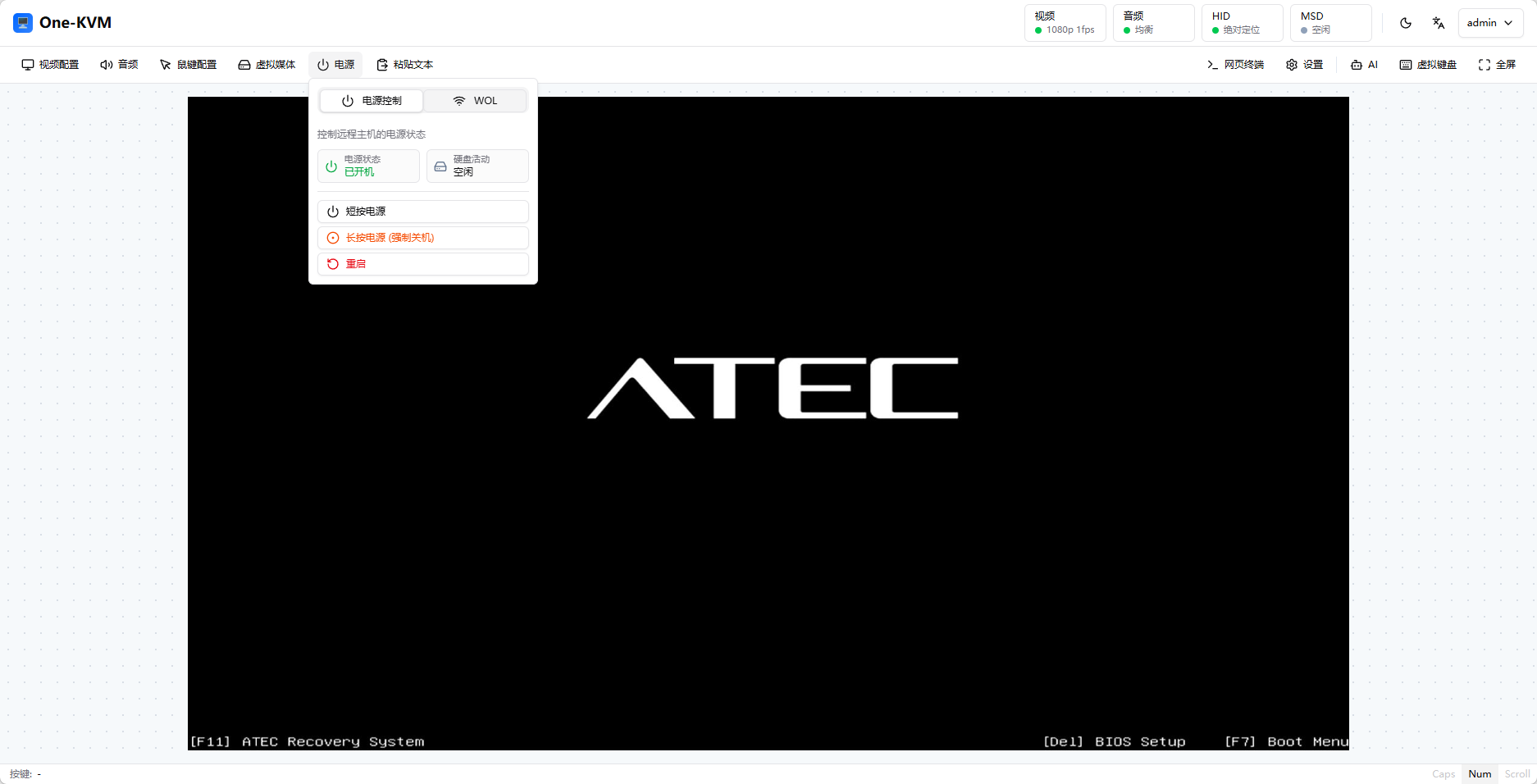
Result
Performance Test Report
Test image: One-KVM-RUST_by-SilentWind_Onecloud_v0.2.5_260722-da20d8b.img.xz
- Run ID:
20260705-201140-9f9676 - Test device: OneCloud (
onecloud) - Video device:
/dev/video0(1080p@50fps MJPEG, 1080p@10fps YUYV) - HID device: OTG
- HTTP latency: p50=2.8ms, p95=3.1ms, max=3.2ms
Video Performance
| Video input parameters | Test frame rate | Latency statistics (median p50 / 95th percentile p95 / maximum max) |
|---|---|---|
| 1080p@50fps MJPEG → MJPEG | 49.9fps | p50=71.6ms, p95=80.9ms, max=83.0ms |
| 1080p@50fps MJPEG → H.264 | 14.8fps | p50=422.9ms, p95=439.3ms, max=442.3ms |
| 1080p@50fps MJPEG → H.265 | 4.6fps | p50=1791.8ms, p95=2341.0ms, max=2442.7ms |
| 1080p@10fps YUYV → MJPEG | 10fps | p50=383.7ms, p95=415.7ms, max=423.1ms |
| 1080p@10fps YUYV → H.264 | 9.9fps | p50=670.4ms, p95=710.8ms, max=712.0ms |
| 1080p@10fps YUYV → H.265 | 1.7fps | Failed |
HID Performance
| Input method | Latency statistics (median p50 / 95th percentile p95 / maximum max) |
|---|---|
| OTG | p50=5.7ms, p95=5.9ms, max=5.9ms |
MSD Performance
| Operation | Data |
|---|---|
| Write | 11.38 MiB/s |
| Read | 14.64 MiB/s |