VNC Remote
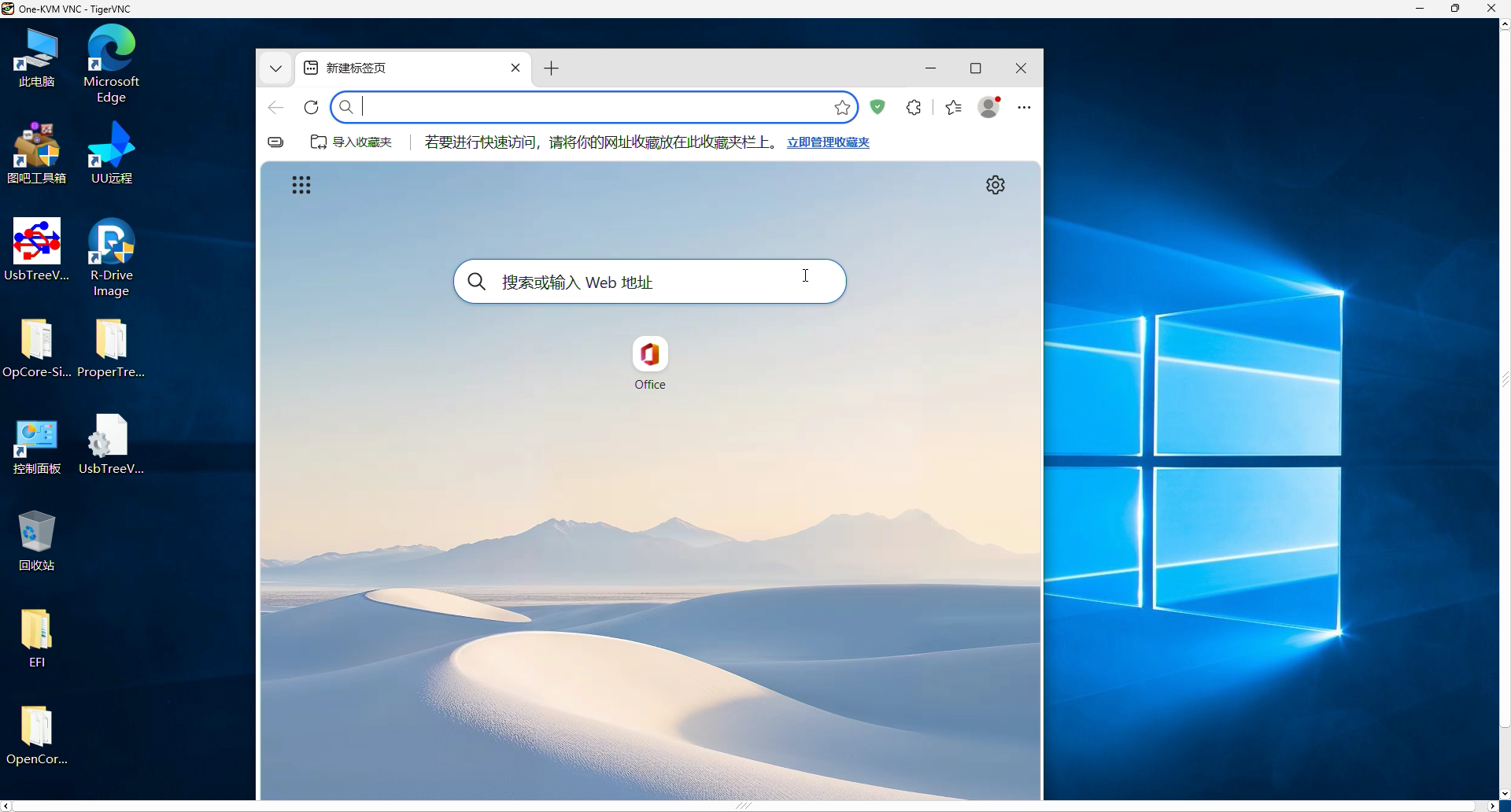
One-KVM Rust includes VNC remote access, allowing you to view and control the current KVM video through a TigerVNC client. The current VNC implementation is not a full standard VNC server, so use TigerVNC for now. RealVNC Viewer, TightVNC Viewer, and similar clients may fail to connect or display correctly.
VNC uses the third-party video output codec. While VNC is running, One-KVM locks the output to the selected codec. VNC cannot start under an H.265 lock, and an MJPEG lock prevents RTSP and RustDesk from starting.
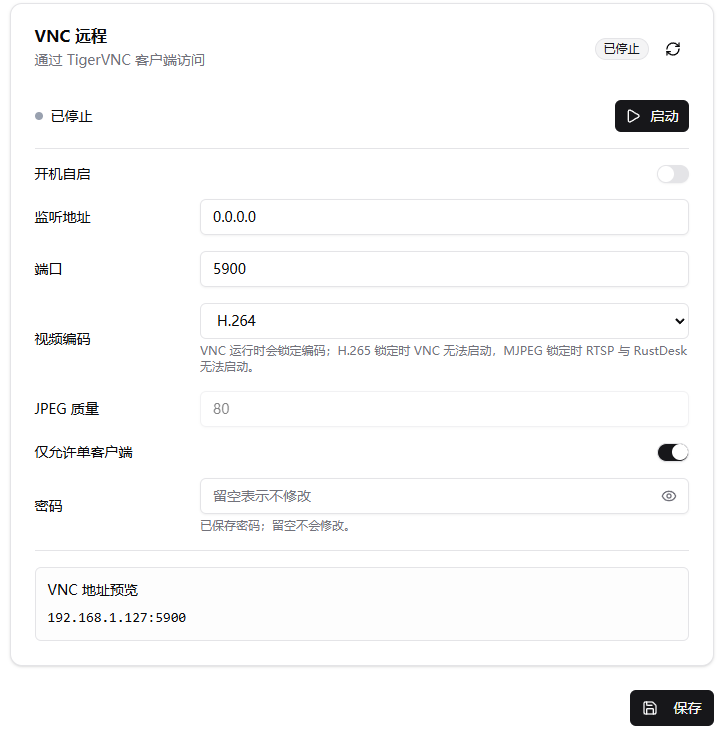
Configuration
| Item | Description | Example/Default |
|---|---|---|
| Auto start | Start the VNC service automatically after system boot | Off |
| Bind address | Local address bound by the VNC service. 0.0.0.0 listens on all IPv4 addresses |
0.0.0.0 |
| Port | VNC service port | 5900 |
| Video encoding | VNC output encoding. Supports Tight JPEG and H.264 | Tight JPEG |
| JPEG quality | Video quality when using Tight JPEG | 80 |
| Allow one client only | Allow only one VNC client to connect at a time | On |
| Password | VNC connection password, up to 8 characters | - |
Setup Steps
- Open Settings -> Extensions -> Third-party Access -> VNC Remote
- Set the bind address, port, and video encoding
- A password is required when enabling VNC for the first time. VNC passwords are limited to 8 characters
- Click Save, then Start
- Confirm the connection address in VNC Address Preview
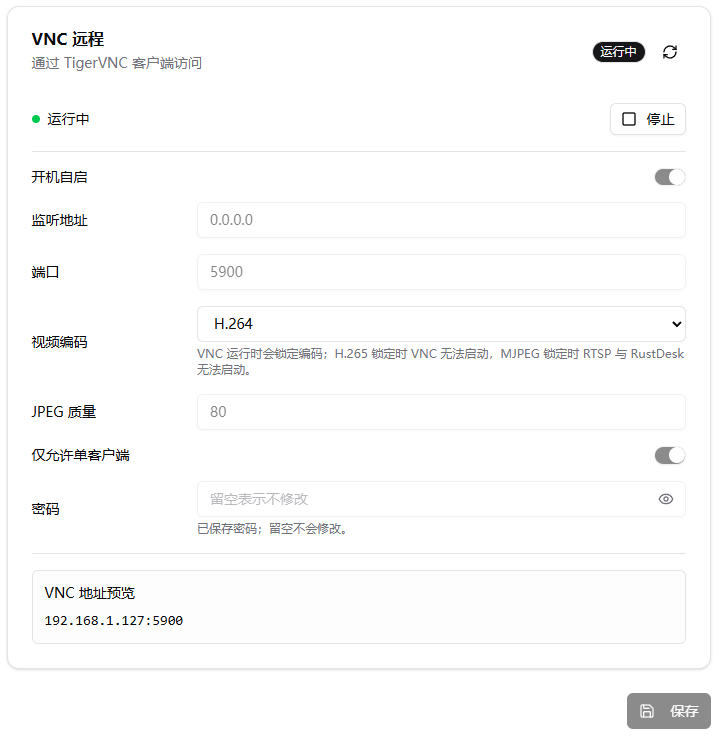
After startup, the page status changes to "Running" and the configuration fields are locked. To change the port, encoding, JPEG quality, or password, stop the VNC service first, save the new config, and start it again.
Connect with TigerVNC
In TigerVNC Viewer, enter the One-KVM VNC address:
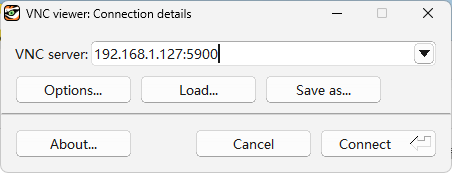
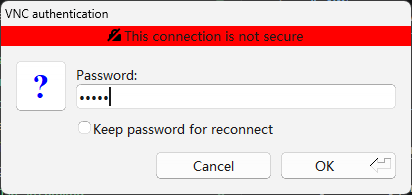
Enter the VNC password configured in the One-KVM settings page.
After connecting, you can view and control the target machine from the TigerVNC window.