RustDesk Remote Control
One-KVM includes a RustDesk endpoint, so you can connect using the RustDesk client.
If you want to self-host a RustDesk relay server, you can quickly deploy the rustdesk/rustdesk-server-s6:latest Docker container.
Connection modes
RustDesk supports ID service mode through hbbs/hbbr and IP direct mode, which listens locally without an ID or relay server. IP direct mode uses port 21118 by default.
Configuration
| Item | Description | Example |
|---|---|---|
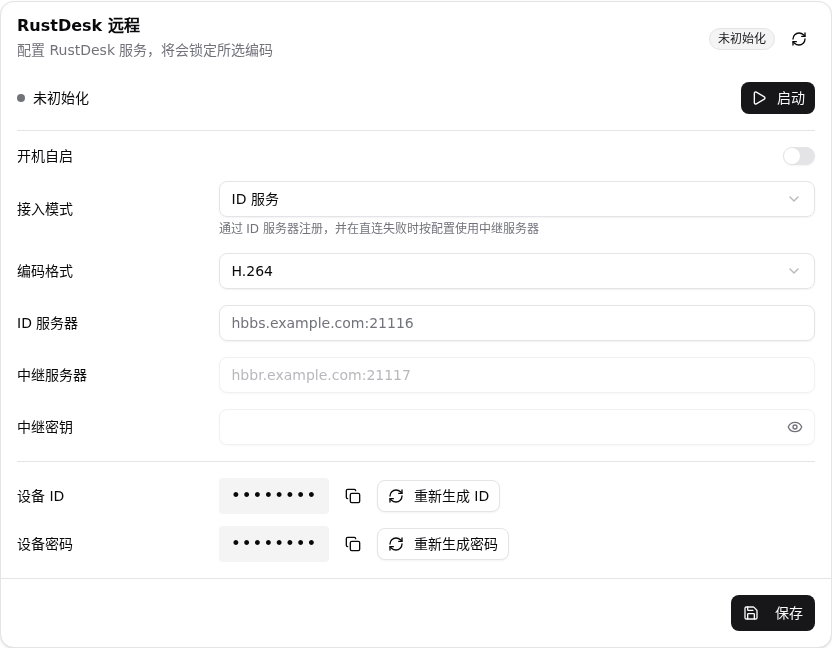
| Auto start | Start with the system | Off |
| Rendezvous server | hbbs address (port optional) | hbbs.example.com |
| Relay server | hbbr address (optional) | hbbr.example.com |
| Relay key | Required if server uses -k |
your-relay-key |
Default Ports
If ports are omitted, One-KVM uses 21116 for rendezvous and 21117 for relay.
Public Server Config
The public server config does not require a password. It is hidden by default and displayed locally in your browser after you click the button.
Usage Notice
The public servers are provided for free with no guarantee of availability, stability, latency, or service quality. Do not abuse them, generate excessive traffic, attack services, occupy resources in bulk, or use them for illegal activity.

Setup Steps
- Open Settings -> Extensions -> RustDesk Remote
- Fill in the rendezvous server and server key
- Click Save, then Start
- Copy Device ID and Device Password from the device info panel
- Connect from the RustDesk client using the ID and password


RustDesk Client Features
RustDesk keyboard mode
If the controlled machine runs Linux or Android, set the RustDesk keyboard mode to legacy/traditional to get correct input.

Audio streaming (with an audio capture device configured in advance) and video quality adjustment are supported, but switching video encoding formats is not.
 |
 |
Relative mouse mode is also supported (requires One-KVM Rust >= 0.1.3 and RustDesk >= 1.4.5). Use this mode when the controlled machine runs Linux or Android.
