GOSTC NAT traversal
The GOSTC extension connects the GOSTC client to its service and provides NAT traversal. Install gostc and obtain a client key from the service website.
Service websites
- One-KVM service:
https://gostc.mofeng.run - Official GOSTC service:
https://gost.sian.one/
Configuration
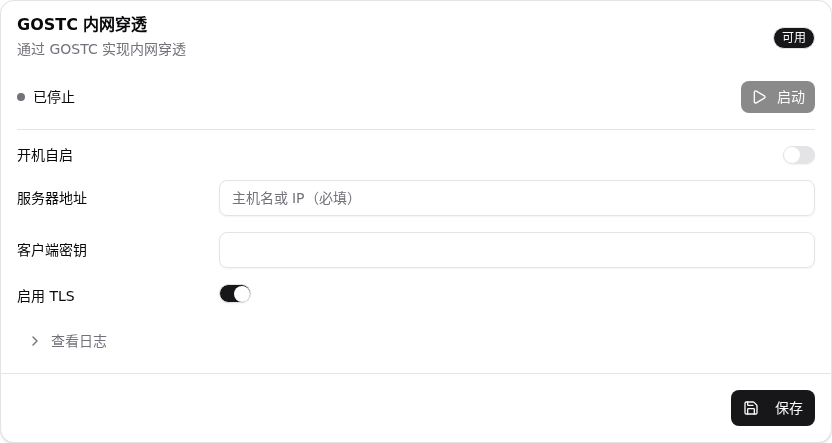
| Item | Description | Default |
|---|---|---|
| Start at boot | Start GOSTC when the system starts | Off |
| Server address | GOSTC host or IP, without http:// or https:// |
Empty |
| Client key | Client key created by the service | Empty |
| Enable TLS | TLS connection to the service; enabled by default | On |
Steps
- Register and sign in to the service, completing email verification if required.
- Create a client and copy its client key (this is not a node key).
- Open Settings -> Extensions -> Remote access -> GOSTC, enter the server and key.
- Confirm TLS, click Save, then Start. Use View log to confirm the connection.


Add port forwarding on the service
- Open tunnel management or port forwarding and create a forwarding tunnel.
- Select a node, plan, and the client you created.
- Set the local address to
127.0.0.1and the port to the One-KVM web port (usually8080). - Save and use the remote address shown by the service.


Free traversal services are generally intended for personal learning and testing. Follow the provider terms and avoid traffic abuse, attacks, bulk registration, data scraping, or unlawful content.