S905l3a Box
Hardware Notes
Warning
This One-KVM image has been tested on ZTE B863AV3.2M and CM311-1a-CH. Other S905L3A boxes may not be fully compatible. If incompatible, consider the Docker-based deployment below.
When using armbian-install, the following devices/DTBs are supported:
Integrated Image Deployment
- Write the integrated image to a USB drive or TF card
- Boot into Android TV
- In Android TV, obtain ROOT and install an APK to switch boot to external media (USB/TF)
- Use the APK to boot into Armbian from external media, then run
armbian-installto install to eMMC using the correct model
Install example:
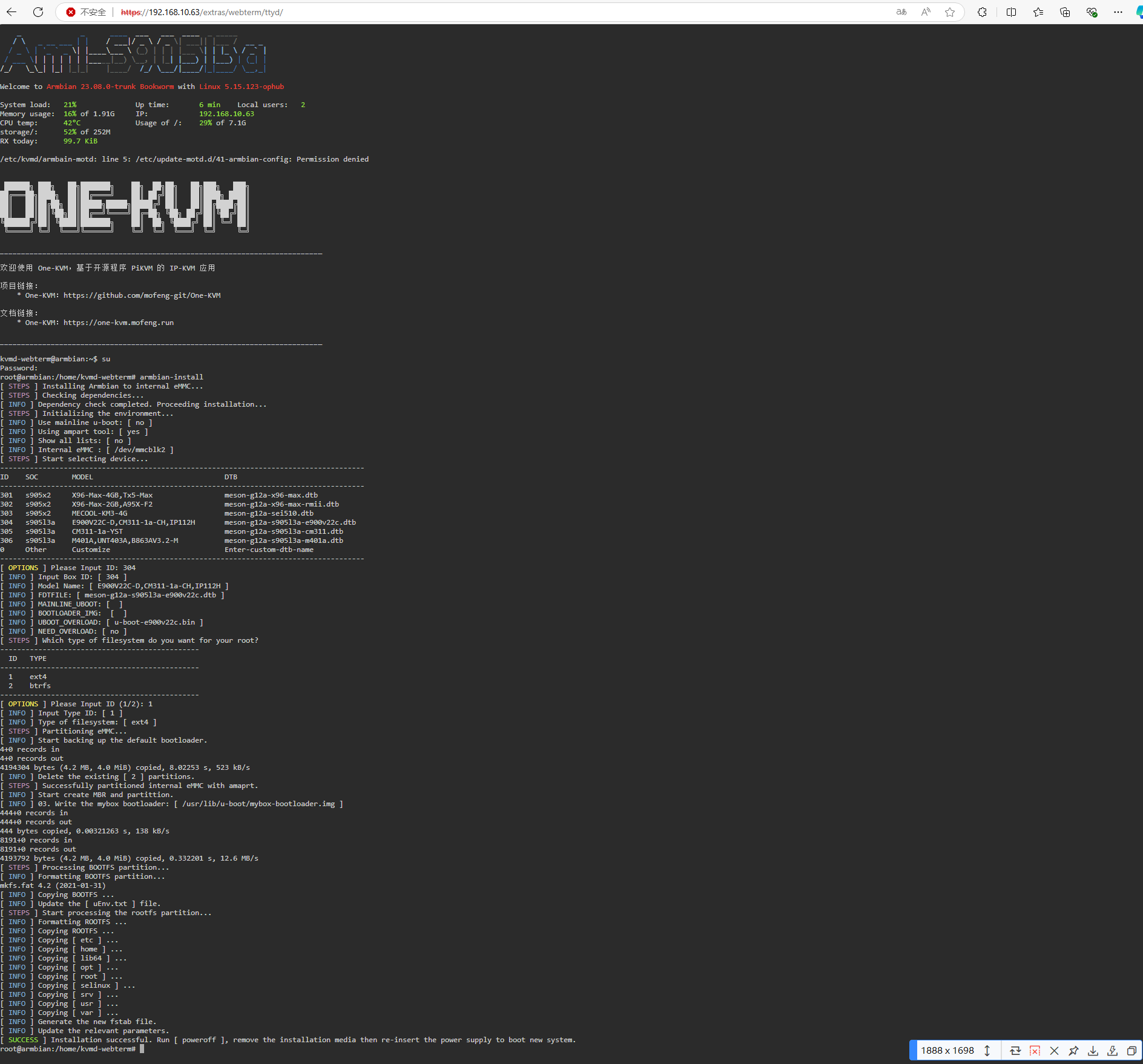
Docker Deployment
- Flash a ROOT-capable Android and install the APK to switch external boot
- Prepare a bootable Armbian on a USB drive; boot it using Android
- Use
armbian-installto write Armbian to eMMC - Replace package mirrors; install Docker
- Run One-KVM in Docker, ensure the OTG port is set to device mode, and make it start at boot. After confirming the container is healthy, enable Docker and container autorun
Commands:
- Run the kvmd container
-
Set OTG to device mode
-
Enable autorun
Usage
Hardware safety warning
To avoid issues such as the target failing to boot or detect devices (and in rare cases hardware damage), take one of these precautions before using a dual-headed USB cable:
Option 1: cut/remove the red 5V (VCC) wire in the USB cable so only the data lines (D+/D−) and ground remain, breaking the power path.
Option 2: insert a USB hub with its own power switch into the USB link and keep that switch off while connecting.
Some low-power targets can back-power from the KVM via the OTG port before their main power is applied, leaving them in a bad state that persists even after you power them normally.
Unless you fully understand the risks, use one of the safeguards above to protect your hardware.
Data safety reminder
Avoid hard power-offs. Cutting power while eMMC writes are in progress can corrupt data.
If you must cut power, run sync after write operations. For shutdowns/reboots, prefer poweroff or reboot so the system flushes data cleanly.