OneCloud
Hardware Preparation
Required hardware: OneCloud host, USB HDMI capture card, standard USB male-to-male cable
Optional hardware: TF card (storage expansion), TTL-to-USB adapter (debugging)
Integrated Image Deployment
Firmware selection
- USB flashing image (suffix includes burn): used with Amlogic USB Burning Tool. Recommended tool version: v2.1.3 or lower.
- USB/SD boot image: write directly to a USB drive or SD card and boot from it.
Video tutorial
For a detailed walkthrough, see the Bilibili tutorial by UP XiaQiuBH6RRB.
Other flashing notes
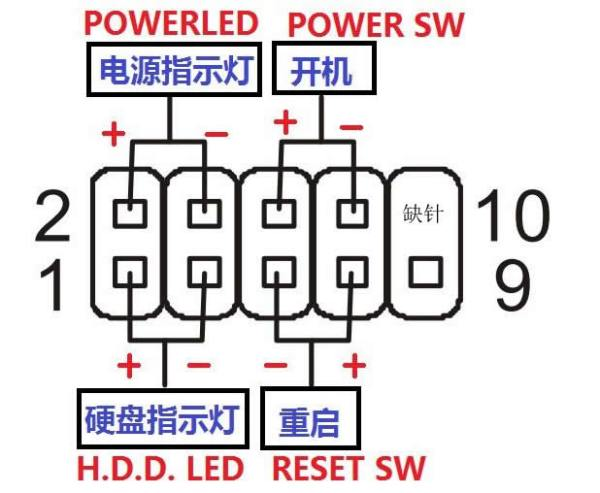
You only need to short the pads until the flashing tool recognizes the device and reaches 1%; then you can release and wait for completion. The pad diagram is from the OneCloud technical group (contributed by Lanlan).

After flashing the direct image, networking defaults to DHCP and the hostname is onecloud. The front panel LED changes from red to green during boot. Access the OneCloud IP in your browser after boot completes.
For subsequent flashing, you do not need to short the pads again. Hold the reset button while powering on to enter flashing mode.
Usage Notes
Hardware connections
Note
Due to the older Linux kernel in the OneCloud integrated image, some older PCs may not be controllable in BIOS but can be controlled after booting into the OS (e.g., Windows). OneCloud with newer 6.x kernels can be unstable, so this issue is currently unsolved.
If you still want to try, use a newer 6.x kernel image from an earlier release (https://github.com/mofeng-git/One-KVM/releases/tag/v0.61), but stability is poor and it is for testing only.
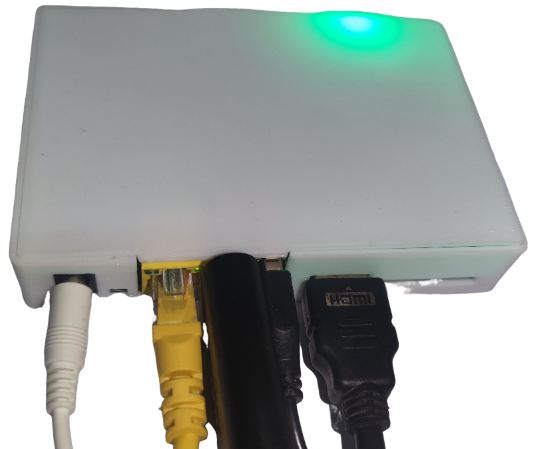
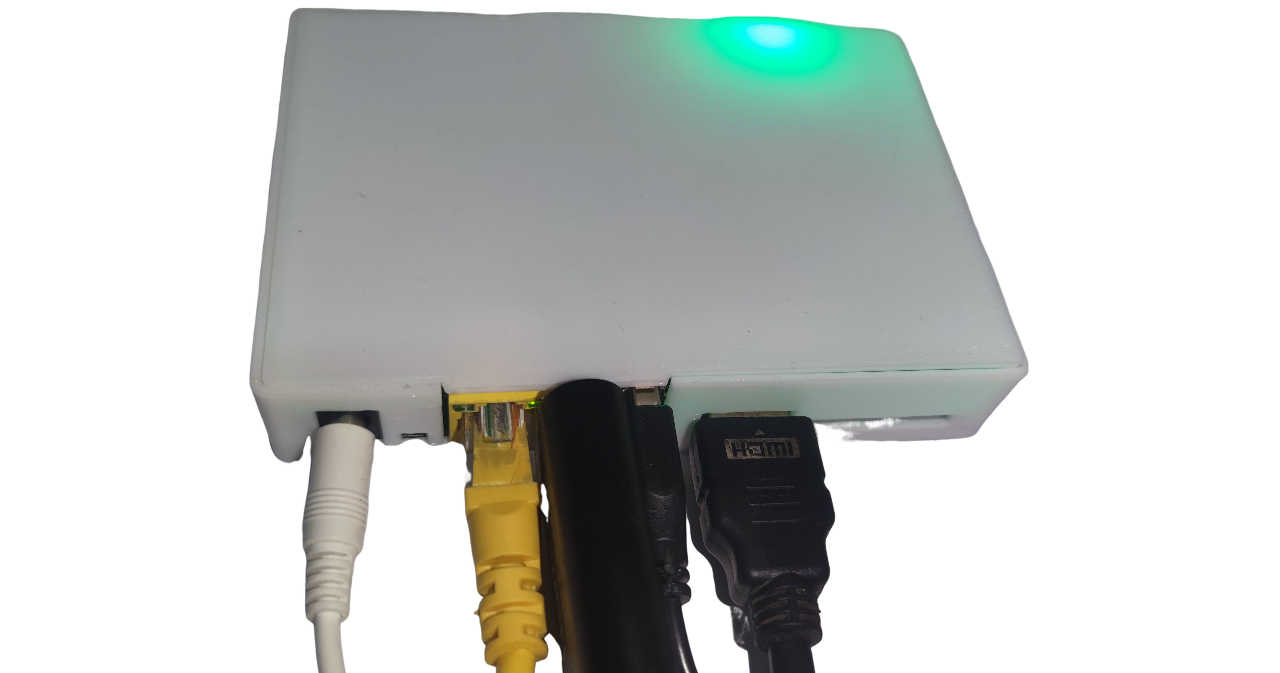
- Plug the USB HDMI capture card into the USB port near the Ethernet jack. Connect the capture card to the target machine's HDMI output.
- Plug one end of the USB male-to-male cable into the USB port next to the HDMI port on OneCloud, and the other end into the target machine's USB port.
- Ensure all connections are secure, then connect power and Ethernet.
Hardware safety warning
To avoid potential risks (e.g., the target device failing to boot or recognize devices, and in rare cases hardware damage), we strongly recommend one of the following safety measures before using a USB male-to-male cable:
Option 1: Cut or remove the red 5V power wire (VCC) in the USB cable, leaving only data (D+/D-) and ground (GND) to prevent back-powering.
Option 2: Insert a USB hub with an independent power switch in the link, and keep the hub powered off when connecting.
Some low-power devices may draw power back through the USB OTG port when their main power is off, causing an abnormal state that may prevent boot even after main power is restored.
Unless you fully understand the risks, use one of the above protections to keep devices safe.
Data safety
Avoid hard power-offs. Sudden power loss during eMMC writes can cause data loss.
If you must cut power, run sync after write operations to flush data. For shutdown or reboot, use poweroff or reboot so the system can sync and shut down cleanly.
SSH remote login
SSH is enabled by default on Armbian. The initial credentials are root/1234. Change the password promptly.
System upgrade warning
Do not use apt upgrade to upgrade the kernel and device tree; this may break the system and OTG functionality.
ATX power control
To use ATX power control, connect the power switch cable.
USB endpoint count
This hardware provides 6 USB OTG endpoints, allowing up to 6 virtual USB endpoints in total.
HDMI loop-out simulation
OneCloud integrated images after build 251001 support this feature by simulating HDMI loop-out via DRM display.
When both a USB HDMI capture card and an external display are connected, the external display automatically shows the capture output. Display performance is around 1080p8fps.
This feature is CPU-intensive and reduces MJPEG frame rate, dropping from about 1080p50fps to 1080p20fps. 720p60fps remains stable.

To reduce CPU usage, remove the DRM display configuration from /etc/kvmd/override.yaml and reboot.